Linux

Thursday, December 13. 2012

Sunday, May 6. 2012

How to setup a modern HP printer in Ubuntu Linux

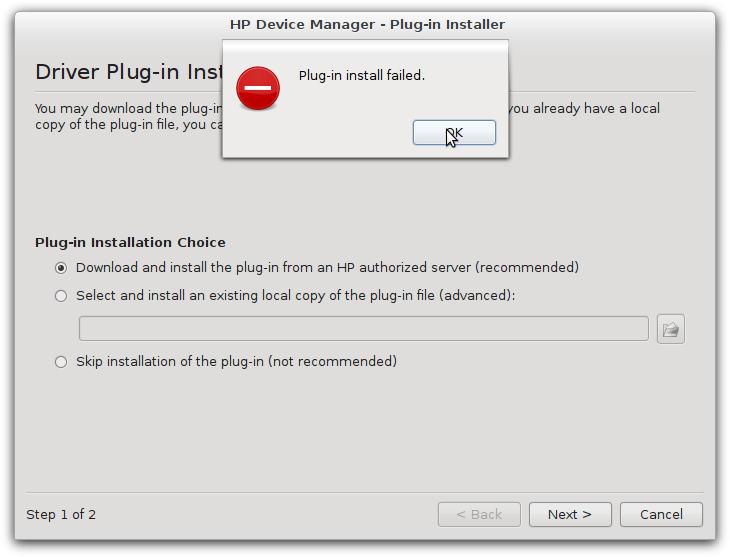
Are you the (un)lucky owner of a modern HP printer which needs a closed-source binary plug-in? And are you using Ubuntu Linux? Then you might know the detailed error message Plug-in install failed which occurs when you try to setup the printer with HP Toolbox (From the hplip-gui package shipped with Ubuntu):

Looks like there is a permission problem somewhere. Not sure if it is Ubuntu's or HP's fault. Running the HP Toolbox as root might fix the problem but unfortunately it refuses to run as root. But there is an easy way to work around this problem. When you try to install the plug-in the HP Toolbox downloads a plug-in installation script from an HP server to your /tmp directory. It then executes it (Without root privileges I guess) which fails. That's why you get the Plug-in install failed error message. Cancel all dialogs and close the HP Toolbox and execute this command in your terminal:

sudo bash /tmp/hplip-3.12.2-plugin.run.1

The version number may be different so check out which files are located in your /tmp directory first. You'll have to confirm the license and after the installation is complete it will print Done to the console. When it didn't print Done then something went wrong. Maybe you forgot to execute it with sudo? When the installation was successful then start the HP Toolbox again and setup your printer. The tool will not try to install the plug-in again because this time it is already there and it works.

Happy printing (and happy scanning and faxing if your printer supports it)!

Saturday, May 5. 2012

Self-made Gubuntu

In 2010 the world was still in order: Kubuntu for KDE, Xubuntu for XFCE, Lubuntu for LXDE, Ubuntu for Gnome. This has changed now. The latest Ubuntu LTS release (And the two previous Non-LTS releases) are using Unity as user interface instead of Gnome. Unity is based on Gnome 3 but it is pretty different to a standard Gnome 3 environment (Which uses Gnome Shell). Hopefully some day there will be something like a Gubuntu distribution which focuses on a standard Gnome environment with Gnome Shell as user interface. But for now we have to get rid of Unity manually. This article explains how to do it and also describes some additional tweaks and hacks to make Gnome more usable.

Continue reading "Self-made Gubuntu"

Thursday, April 12. 2012

Workaround for borderless Java Swing menus on Linux

Since years Linux users are plagued by a bug which affects the rendering of Swing popup menus. When using a modern GTK theme (Like Gnome's Adwaita or Ubuntu's Ambiance and Radiance) then menus in Java Swing applications have no borders and no separators:

Several bug reports exists (Like #6925412) but it seems to be unclear if this is a bug in the affected GTK themes or a bug in Java's GTKLookAndFeel class. Fact is: I'm pretty sure this bug will not be fixed anytime soon so we have to find a workaround and in this article I will show you two different approaches.

Continue reading "Workaround for borderless Java Swing menus on Linux"

Sunday, February 26. 2012

Shell scripts and space characters in command line parameters

I'm using Linux for more than 10 years now and it is embarrassing that I missed this shell feature for so long. But first let's explain the problem: Let's say we want to write a shell script which simply starts some application and which passes all command line parameters to this application. This is often useful if an application is installed in some directory which is not in the PATH and you want to put a starter script into ~/bin which is in PATH. Example:

#!/bin/sh
# Filename: ~/bin/startmyapp
cd ~/opt/myapp
exec ./myapp $*

$* is a place holder for all command line parameters which were passed to this shell script. Now let's feed some command line parameters to it:

startmyapp arg1 "arg2 with spaces" arg3

The ~/opt/myapp/myapp program is now called like this from the shell script:

./myapp arg1 arg2 with spaces arg3

So now there are five parameters instead of three. Bad thing. Using "$*" instead of $* also doesn't work because then all command line parameters are passed as a single parameter to the program. So far I never searched for a solution to this problem. Instead I always worked around this problem somehow. But today I took some time to find a solution and found it pretty fast. It simply looks like this:

#!/bin/sh
# Filename: ~/bin/startmyapp
cd ~/opt/myapp
exec ./myapp "$@"

This $@ parameter was completely new to me. The difference between $* and $@ is explained here.